Showing posts with label Tips dan Tutorial. Show all posts

Monday, 23 August 2010

Tips Mozilla Firefox Crash


Akhir –akhir ini firefox 3.6.3 di komputer saya mendadak sering terjadi crash dan ada pesan supaya restart firefox atau quit / keluar dari firefox. Setelah berburu di belantara dunia maya saya memcoba menerapkan sebuah tip yang mungkin berguna bagi anda yang mengalami masalah seperti  yang terjadi pada firefox di komputer saya.
Pesannya seperti ini :
Pertama anda harus mencari penyebab dari crash tersebut dengan cara mengetik about: crashes di address bar pada firefox sehingga akan muncul penampakan seperti dibawah ini

Ini merupakan penyebab dari crash tersebut. Klik semua link yang ada di pesan tersebut untuk mengetahui detail penyebabnya..

Setelah kita mengetahui penyebab Crash, lanjutkan dengan klik pada  “Search Mozilla Support for Help”. Di pojok kanan atas report tersebut.
Kita akan mendapatkan report  masalah apa yang berhubungan dengan file Signature tersebut. Dari signature diatas maka diketahui masalah yang terjadi dengan firefox saya adalah masalah “Adobe Flash Player”
Untuk mengatasi masalah ini saya melakukan  Update Adobe Flash Player. Un-instal  terlebih dahulu Adobe Flash Player terinstal dan instal Adobe Flash Player baru. Sekarang masalah crash tersebut tidak mengganggu saya lagi dalam berselancar di Dunia Maya. Selamat mencoba. Semoga bermanfaat…

Saturday, 29 May 2010

remove autorun function 'manually'

become a previous post, I show how to get rid of autorun to register regigtry. my last post, I want to explain what if I want to manually remove the autorun on your computer ...

Open 'Run', type 'regedit'. Then open the folder HKEY_LOCAL_MACHINE. then Open the folder SOFTWARE> Microsoft> Windows NT> CurrentVersion. IniFileMapping right click in the folder, then click New> Key. Rename the folder (New Key) IniFileMapping. Click on the white box on the right. Set 'New String Value', rename "@ SYS". Set 'Value Data' earlier on the New String Value, type "DoesNotExist".

Friday, 28 May 2010

tips: how to change the name of the computer processor

go to

1: click start
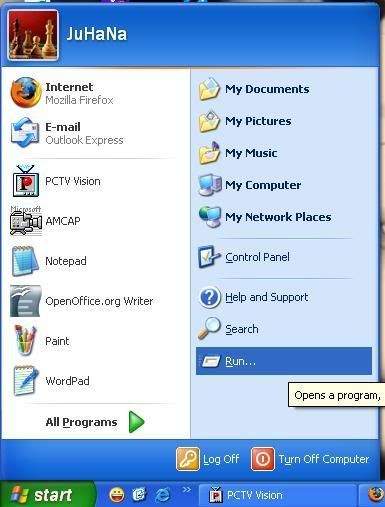
2: RUN
3: type regedit
4: find "hkey_local_machine"
5: Click on hardware
6: discription
7: system
8: central processor
9: Click the folder '1 'or '0'

find the word "processornamestring" then right-click
and click on MODIFY. Then you can change the name of the processor
according to your preference. with a simple trick with my processor
has changed its name to Core I7. want to buy a very expensive, so ..
only able to change the name. hehehe ...

Tips : How to reduce your risk of computer virus

Since the use of pendrive popular, many virus2 that spreads from computer to computer via pendrive, where the creator of the virus to manipulate the Windows autorun functionality ...

My virus will usually file it with self Duplicate file autorun.inf into the pendrive with attribute hidden system file ... When stick to computers, files and autorun.inf to automatically run the virus will be "executed" ... then, my computer is officially "under attack" viruses and are willing to wait another pendrive to travel to another computer's still good ...

Usually if still place regularly update anti-virus, no problem, I just sometimes, not all antivirus can impact a particular virus, there are sometimes slow tu antivirus update it's virus definition ....

To reduce the risk of the virus to be some use software such as autorun killer. No disable autoplay ... DoubleClick on the icon but if I pendrive, autorun file to execute is still more ...

I disable this directly to my autorun.inf functionality.
how
copy this text below:
REGEDIT4
[HKEY_LOCAL_MACHINE\SOFTWARE\Microsoft\Windows NT\CurrentVersion\IniFileMapping\Autorun.inf]
@="@SYS:DoesNotExist"
then paste to notepad, save... rename to ' removeoutorun.reg '... then just doubleclick 

Thursday, 27 May 2010

how to overcome the virus manually

before I post my tips on how I want a manual virus scan ..ok, my last post is how to overcome the virus manually ...


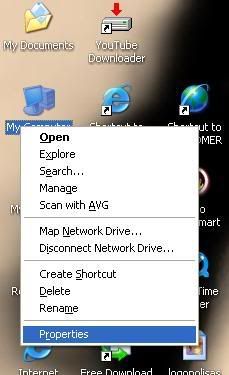
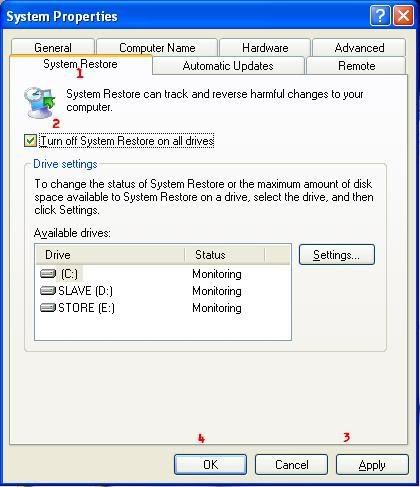
1. Off system restore

- right click  'my computer'

- klik properties

- klik tab system restore

- klik "turn off system restore......"

- klik ok


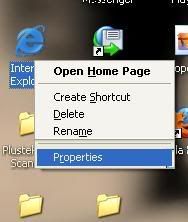
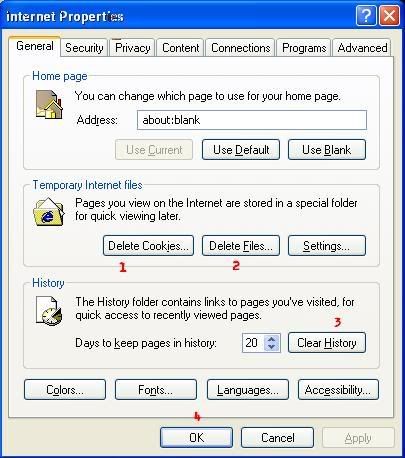
2. remove the TEMP file- Right-click the icon Internet Explore- Properties- Delete cookies- Delete file- Clear history- Click ok
3. update antivirus / spyware

4. restart


5. windows run under safemode- Restart pc- Press F8 when I heard the sound "teet!"- Press the ratio of a second one last press F8 button- Select safemode- Enter 2 times- Sign declaration- If the popup out press spacebar once6. scan hdd with your antivirus / spyware / portable antivirus / 
programs can remove viruses taste


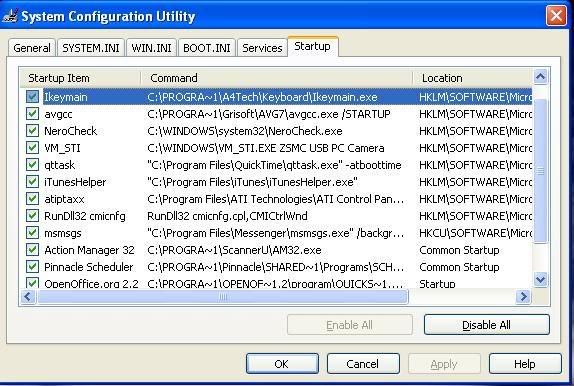
7. open msconfig> startup> remove that should be (the virus file start up)


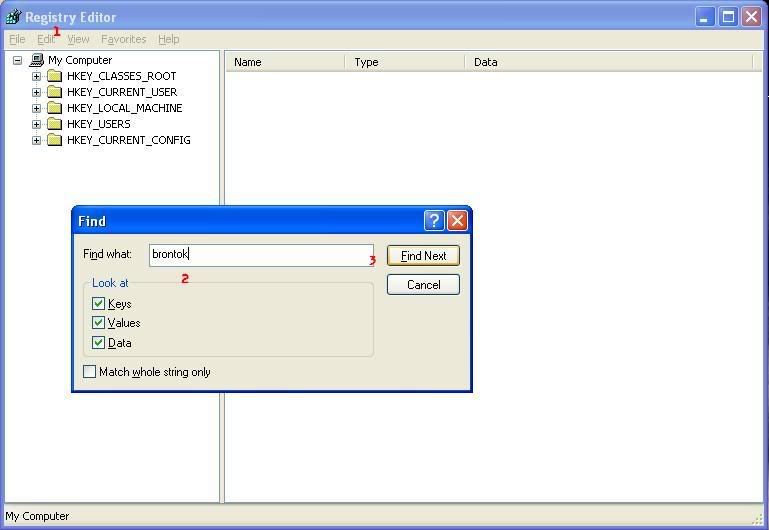
8. open regedit- Search the name of the virus if brontok example, search and delete the name brontok
9. restart- In normal mode


10. double check system- If before I can open my attempt to go to see whether or not- I left kompom, scan once more in normal mode
11. Last Resort- Sorry dude, i cannot help if I try all applications. his way .... HDD FORMAT


 *sumber: bro lancer,terengganu.

know how to get pc virus manually

I share my tips to detect the virus manually
Because I do not know too many to be a virus or system does not know how to overcome them

- Suddenly so slow operation but before it was ok
- Download something and then double click the download will not be, as if not click
- I lost a lot of normal function / no (folder options / task manager)
- Open an application but do not go to @ go off their own back then securely fastened
- System like rehash. he is close explore.exe then again (restart explore.exe)
- Pop-up suddenly open many / create their own
- Search of other things, the other out
- Use yahoo search result, but suddenly another search engine
- Antivirus can not running background
- Kat application startup folder is strange (unknown) @ No write "empty" (non-self-TRANSPARANT)
- Msconfig> startup (no strange file name eg odgkkjjl268)
- Out error msg's weird or nonsensical the msg window
- Can not open taskmanager / msconfig / regedit
- Pc shutdown itself
- Can not enter windows / click the icon account, he re logout
- Loading time for an application / or time on my pc


how to overcome is the next post ...

*sumber: bro lancer,terengganu.

Wednesday, 26 May 2010

How to Format my Hard Disk and Install Windows XP (picture)

Format Hard Disk and install Windows XP into the computer is usually done for two reasons, namely:

* You just bought a new computer or hard disk, so you need to enter the OS into it.
* Windows is damaged, hang, or infected with the virus. And re-install Windows XP is a last resort that you had to do suapaya your computer back to normal functioning.

Articles in this time will teach you how to format Hard Disk and install Windows XP into it, step by step. (Note: This article is filled with diagrams, so it may take some time to appear). If you want to print this article, download this PDF file. Ok, let's start:

Set the Boot Sequence to CD-ROM

To ensure that your computer will read the Windows XP CD to be inserted, boot sequence should be assigned to the CD-ROM first. In most computers, this setting is already set, so you do not have to worry anymore. You can continue to format the Hard Disk if there is no problem here.
But if your computer is not reading from a CD-ROM, follow these steps to set the boot sequence:
(Note: Each computer has its own BIOS display. So, what you see may differ from your computer. However, the concept and the principle remains the same)

1. Turn on your computer.
Second. Press the F2 button (on some computers, you must press the DELETE button) to launch the BIOS.
3. In the Phoenix BIOS, select Advanced BIOS Features.


4. Select Boot Sequence.

5. In the Boot Sequence sequence, set the CD-ROM is at the top.

6. Press F10 to save your settings and restart the computer.Format Hard Disk
1. First of all, you'll see a screen with the message "Press any key to boot from CD ...". Press any button here so that the computer will start reading from the Windows XP CD.

Second. Note the first message out, "Press F6 if you need to install a third party or SCSI or RAID driver." This message is important if you install Windows XP on SATA Hard Disk. If so, press F6 and insert the diskette attached to SATA motherboard you. If not, ignore this message and proceed to step 3. (Note: If you want to install Windows XP on SATA Hard Disk, but no floppy, follow these steps)

3. "Welcome to Setup" is displayed. Press ENTER to start to install Windows XP.

4. "Windows XP Licensing Agreement." Press F8 to continue.

5. Hard Disk If you have Windows XP, Setup will ask if you want to repair Windows XP which I long. Press the ESC button that you want to install Windows XP new.

6. # If your Hard Disk:
* Is still new and not yet have any partitions, follow steps 7 to 8.* But if it has no partition in it, proceed to step 9.


7. Create a partition by pressing C.

8. Determine the size of your partition and hit ENTER.

9. Choose a partition C: to install Windows XP. Note: If you have important files and documents in the partition C:, create a backup of the data transfer to the partition D: or to the external hard drive.

10. Press the C button to agree.

11. Choose NTFS as the file system and press ENTER.

12. Press the F button to format Hard Disk.

13. Setup will start formatting Hard Disk and prepare files for the Windows XP install. Once this process is complete, your computer will restart itself.


Install Windows XP
1. Windows XP install process begins. Click the Next button.

Second. Enter your name and click the Next button.


3. Enter the serial number for Windows XP and click the Next button.


4. Enter a password for the Administrator and click the Next button.


5. In the Time Zone field, select the Kuala Lumpur and click the Next button.


6. Setup process has been started. Wait until finished.


7. If you have a Network Card, Setup will ask you to choose the Networks. Just click the Next button twice.


8. Wait until the entire Windows XP install process is complete, and the computer will restart again.


Start Using Windows XP

1. First start Windows XP, screen resolution will be changed as appropriate. Click on the OK button.

Second. "Welcome to Microsoft Windows" is displayed. Click the Next button.


3. Select "Not right now" and press the Next button. You can enable Automatic Updates back on later.

4. Windows will attempt to detect your Internet connection. You can leave this step by pressing the Next button.


5. Select "No, not at this time" so you do not need to register with Microsoft. Press the Next button.


6. Enter your name and press the Next button.


7. Click the Finish button.

8. Now, Windows XP already installed and ready you are to start using it.


That is all the steps needed to install Windows. Easy, right? No need to spend money up to RM40 (or perhaps more 0.o) to send your computer to the shop because my PC format, because you can do it yourself ...

-------------------------------------------------- ---------------------------

Do not forget a try and read the prayer, that simplified the business ....

------------- Source: bro shah kenshiin. -------

how to test antivirus on your computer

ok, you can try to test you have antivirus work or not? power to it? hehehehe .. I try my Norton anti-virus's power he continues to delete the other ... just for warning only, if not delete it means your antivirus is not working. ....how:
1: click start ---> open notepad
2: copy the code below and paste it in your notepad
X5O!P%@AP[4\PZX54(P^)7CC)7}$EICAR-STANDARD-ANTIVIRUS-TEST-FILE!$H+H*

3: just a notepad and then save the name "fakevirus.exe" in any folder. I easily save the desktop.
4: if the file does not disappear after you save .... this means your PC is active antiviral and 'update'!
5: if the file does not remove, try 'right click' on the file I and virus scan with antivirus. If your antivirus 'detect' file as a virus, it means your antivirus is alive or active, but not 'update'.
6: if the file does not disappear after you scan with your antivirus .... I suggest you remove and install another antivirus antivirus because you wear it's not working ... haha

8 Hacks to make Firefox ridiculously fast

Firefox has over IE in every department for many years, and version 3 is faster than before. But the right tweaks and settings you can make it more quickly, more than double your speed in some situations, all for about five minutes to work and correct any cost. This is what you should do.

1. Enable pipelining Browsers are usually very polite, sending requests to the server and then wait for responses before continuing. Pipelining is a more aggressive technique that lets them send a request before the response is received, often reducing page download time. To activate it, type about: config in the address bar, double click "network.http.pipelining" and "network.http.proxy.pipelining" so that their values set to true, then double click on "network.http. Pipelining. maxrequests "and set this to 8. Keep in mind that some servers do not support pipelining, though, and if you regularly visit a lot of these tweaks and indeed can reduce performance. Set "network.http.pipelining" and "network.http.proxy.pipelining" become false again if you have a problem.

Second. Render quickly Large, complex web pages can take a long time to download. Firefox does not want to make you wait, so a default will display what is received every 0.12 seconds so far ("content notify interval". While this helps the browser feel sharp, Menggambar back often to add a total page load time, so inform the content of the interval will improve performance. Type about: config and press [Enter], then right-click (Apple users ctrl-click) somewhere in the window and select New> Integer. Type "content.notify.interval" as your preference name, click OK, enter 500000 (the five hundred thousand, not fifty thousand) and click OK again. Right-click the window and select New> Boolean. This time was called the "content.notify.ontimer" and set to True to complete a job.

3. Faster loading If you have not moved the mouse or touching the keyboard for 0.75 seconds (the content switch threshold) then Firefox enters a low frequency cut mode, which means antarmukanya become less responsive, but the page load faster. Reduce the content switch threshold can improve performance, then, and only takes a few seconds. Type about: config and [press Enter], right-click the window and select New> Integer. Type "content.switch.threshold", click OK, enter 250000 (a quarter second) and click OK to finish.

4. No interupsi You can take the last step even further by telling Firefox to ignore user interface events altogether until the site is currently didownload. This is a little drastic as Firefox could remain responsive for a while, but try this and see how this works for you. Type about: config, press [Enter], right-click the window and select New> Boolean. Type "content.interrupt.parsing", click OK, set the value to False and click OK.

5. Block Flash animations Flash interfere in any, comment on the content you really want to read and slow down browsing. Fortunately there are easy solutions. Install Flashblock extension (flashblock.mozdev.org) and will block all Flash applets from loading, so web pages will display much faster. And if you have found some Flash content that is not completely useless, click the placeholder to download and view the applet as normal.

6. Increasing the size of the cache when you browse the web so Firefox stores site images and scripts in the local cache memory, where they can quickly be taken if you revisit the same page. If you have a lot of RAM (2 GB more), leave Firefox running all the time and regularly return to pages then you can improve performance by increasing this cache size. Type about: config and press [Enter], then right-click anywhere on the window and select New> Integer. Browser.cache.memory.capacity type, click OK, enter 65536 and click OK, then restart your browser to get the cache, the new larger.

7. Enable TraceMonkey TraceMonkey is a new Firefox feature that changed the javascript to be super-slow-fast x86 code, and so allows to run some functions anything up to 20 times faster than current versions. This is still buggy so is not available in regular Firefox download, but if you're willing to take the risk of accidents weird or two later there an easy way to try. Enlightenment install the latest build (ftp://ftp.mozilla.org/pub/firefox/nightly/latest-trunk/), start, type about: config in the address bar and press Enter. JIT Type filter points, then double-click javascript.options.jit.chrome and javascript.options.jit.content to change their values to be true, and that's it - you start the engine the fastest Firefox ever javascript.

8. Kompres data If you have a slow Internet connection it may feel like you do not have Firefox to perform properly, but that's not always true. toonel.net Install (toonel.net) and Sarawak, this applet will return the smart route your web traffic through the server itself, the emphasis at the same time, until there is little to download. And can even compress JPEG files by enabling you to reduce their high. This helps to cut your data transfer, useful if you are in a GB per month account is limited, and the best performance that can double your browsing.